

HarnessGet started
Build your first Ailo
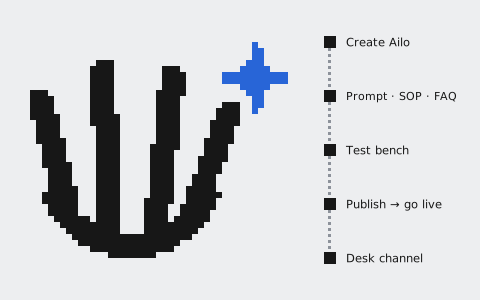
This page starts from an empty Harness organization and ends with Ailo serving customers on a Desk channel. Most steps happen in the Harness console; the SOP and system prompt editors are not open to every organization yet, so those two kinds of content are written through the API for now, and connecting a channel also takes steps on the Desk side. Every step is a named command underneath, so the API, the CLI and Orbit can do the same.
Before you start #
- A Harness organization. Desk and Harness each have their own organizations; the invitation link decides which one you join. Editing content, saving versions and going live need the admin or owner role.
- The workspace pages must be turned on. ailodesk turns on Config, Test, Release and Runs for each organization page by page; a page missing from your sidebar is not on for your organization yet.
- No model to pick. You do not choose a model when you build an Ailo; operations configures the reply and fallback models for each organization.
While an organization has nothing built yet, its home page lists five steps under "Build your first Ailo": create the Ailo, import knowledge, write SOPs, try a chat, connect a channel and release. This page follows the same order.
1. Create the Ailo #
Create an Ailo on Workspace › Config. Each Ailo is one package; every later change is saved as a new version of that package. Saving never changes what is serving customers; only going live does.
2. Write the content #
An Ailo has three kinds of content:
| Content | What it does |
|---|---|
| System prompt | Who Ailo is, its tone, what it may and may not do |
| SOP | How to handle one kind of request step by step; it can declare the tools it needs |
| FAQ | Knowledge entries. Ailo cites them in replies, and Desk checks that each cited entry was really retrieved in this turn |
When the system prompt or an SOP tells Ailo what to say to customers, refer to the team the way a customer would, such as "our team" or "a colleague". "Specialist" is an internal name: the default prompt tells Ailo not to say it to customers, and fixed SOP copy is sent word for word, so leave it out there too.
What Ailo writes for the team (handoff notes, the reason for a transfer, what an assist ticket should check) is in the team's language, not the customer's: the default prompt uses the interface language most of the team's members chose in the desk, and English when nobody has picked one by hand, so a Chinese team needs someone to pick Chinese in the desk once. The system prompt and SOPs need no rule of their own for this.
Each item has its own version history. Save a version when you change it, without touching what is live; publish a new package version once you are ready. Endpoints and fields are in Knowledge and SOP API.
3. Try it on the test bench #
Workspace › Test is a real chat widget backed by a test conversation:
- Test any version of any Ailo in the organization, including versions that never went live (this needs Config to be on). The whole test stays on that version.
- Handoffs and assist tickets go through the real flow but only to you, the person who started the test. They do not enter anyone else's queue, and they are not counted in stats.
- Tools that write are not actually run; their steps are marked "simulated".
- Every turn shows its steps: which tools were called, what came back, how many tokens were used.
- Model costs during tests come out of a separate test budget, not the live budget.
4. Publish and go live #
Publishing and going live are two steps:
- Publish: combine the latest version of every content item into a new package version. Every SOP is checked first; a single problem stops the whole publish. Publishing does not change what is serving customers.
- Go live: on Workspace › Release, make a version live. Every turn that starts afterwards reads that version; a turn already under way is not affected.
To roll back, make the previous version live again. See Versions, publishing and going live.
5. Connect it to a Desk channel #
For Ailo to serve customers in Desk, both Desk and Harness hold a switch, and both must be on:
- Connect the two organizations. The owner of the Desk organization requests the connection; the owner of the Harness organization approves it.
- Harness's switch: a Harness admin decides which Ailos on this connection this Desk may use.
- Desk's switch: a Desk admin chooses an Ailo for each channel (the web chat widget, a Telegram bot, and so on).
If either switch is off, new conversations go to the Desk team. A conversation keeps the Ailo it started its first turn with; changing the channel later only affects new conversations.
6. See how it is doing #
- Runs: Workspace › Runs lists your organization's turns; open one to see its steps. See The Runtime and run records.
- Stats: resolution rate, teammate involvement, helpfulness and conversation volume, per Ailo if you like. See The Harness console.
Turns run through a connection are not shown yet
When Ailo serves a channel of another Desk organization through a connection, those turns do not appear in Harness's Runs and Stats yet; this is planned. Both pages currently cover only your organization's own conversations and the test bench.
Writing your own code
None of the above needs code; Ailo runs the platform's loop. To see what a turn looks like in code, read Code packages and main and Ailo SDK. Custom code packages cannot run in live conversations yet.